Fujitsu Amilo Pi 3560 review from a Linux user
This week I bought a new laptop although my old one has still plenty of life in it thanks to Intel. Their graphics drivers suffer for over a year now and for the last months it became just impossible to work with.
I appreciate the work of their developers, writing open source graphics’ drivers and leading in general graphics’ drivers, xorg server and linux kernel to a better setup (in-kernel drivers, kms, gem). But the thing is that while they are doing this their drivers are a pain to use. My old laptop, with an Intel T7300 CPU (2GHz, 2 cores, 4MB cache), 2GB of RAM and Intel X3100 can not even run properly firefox, konqueror, openoffice or eclipse. I don’t want 3d performance, I want a usable system. Constant memory leaks, extensive swaping although there is free RAM and/or the swappiness is set to low levels and the last month the OOM killer killed my X countless times. When I change tab to my browser I do not want to stare at the disk activity led for more than a couple of seconds.
So, on Sunday, really tired of the above situation, I decided to order a new laptop with nVidia graphics card this time. Not in my budget calculations for this year but I need a working computer in order to work. Without much thought I ordered a Fujitsu Amilo Pi 3560 to replace my old Amilo Pi 2515. It arrived on Wednesday.
Since I am a bit dissapointed by the lack of product reviews from the Linux user perspective I thought I should write a small review. We (Linux users) are like every other user: we want to buy the latest and greatest when it comes to computers but often risk to end with an unsupported device. This laptop launched about a month ago, so if you are out for a laptop now it will be on your list of choices.
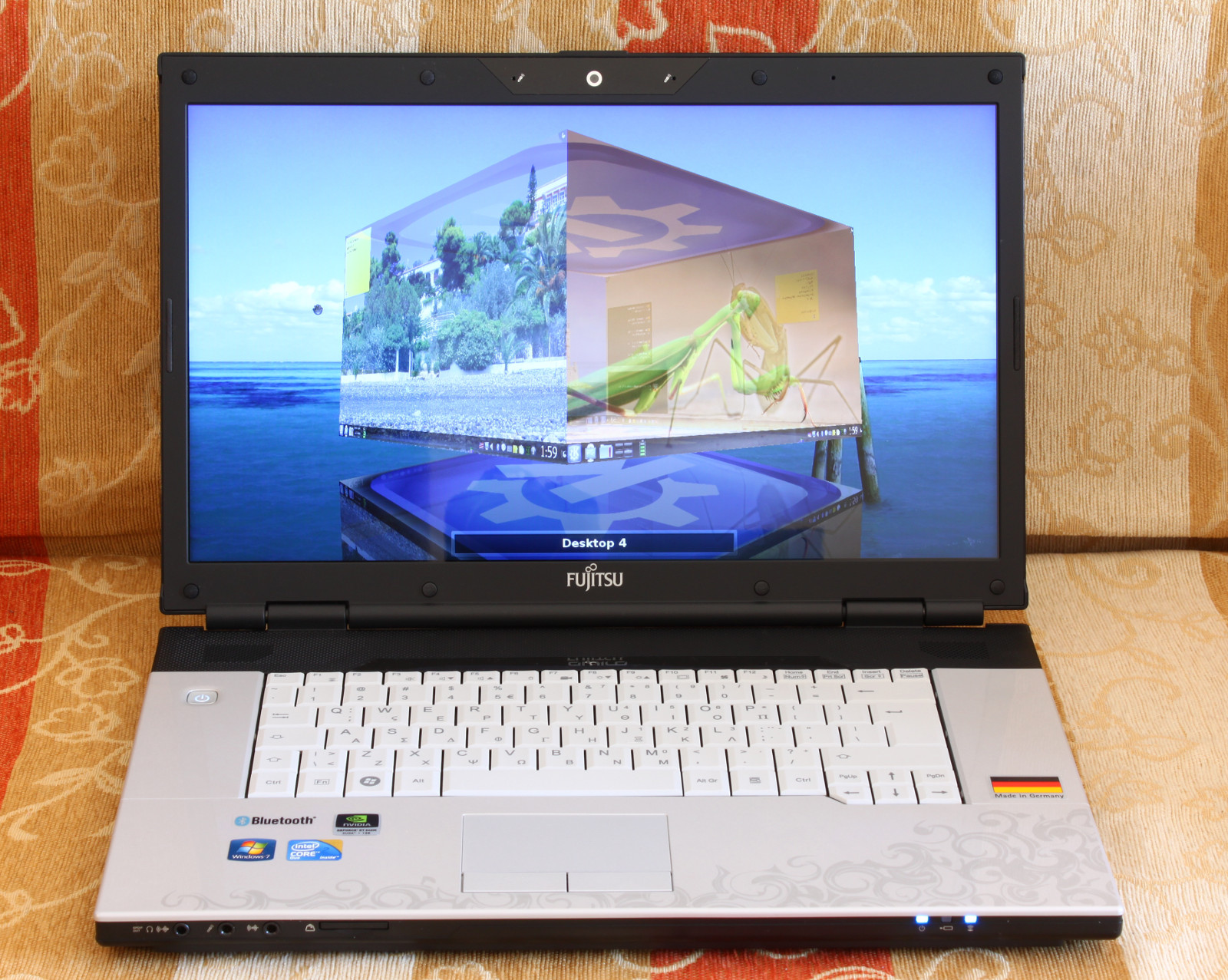
Specifications (for my setup at least, Pi 3560 F2):
- Intel Core 2 Duo T6600 (2 cores, 2GHz, 2MB cache)
- 4GB RAM (800MHz, upgradeable to 8GB)
- nVidia GT240M with 1GB DDR3 VRAM, supporting PhysX, Cuda, PureVideo HD (vdpau support)
- 16 inch LED display, 1366×768 (16:9)
- 500GB hard disk (5400rpm, 8MB cache, reports as Hitachi HTS545050B9A300)
- 10/100/1000 ethernet (reports as RTL8111/8168B PCI Express)
- Wi-Fi 802.11 b/g/pre-n (reports as Realtek 8172)
- Bluetooth v2.1 + EDR (Broadcom)
- 3 USB ports, one of them works as eSATA too
- High Definition Audio with: line in, mic in, internal mic, line out / headphones / SPDIF 5.1 combo (Realtek ALC272)
- HDMI 1.3a, VGA out
- Card Reader (SD, MS, MMC, XD)
- SuperMulti DVD Burner (TSSTcorp CDDVDDW TS-L633C)
- Express card
- Webcam, 1.3MP (SuYin USB 2.0 Camera)
- Spill-proof keyboard
- 2 year warranty
Cost: a big Greek retailer offered it for 700€.
**My setup:
**
- Gentoo Linux 64bit, testing arch (~amd64)
- Linux kernel 2.6.31 (-r5)
- ALSA 1.0.21 (in-kernel version)
- X server 1.7.1
- nVidia proprietary drivers 190.42 (-r3)
- KDE 4.3.3
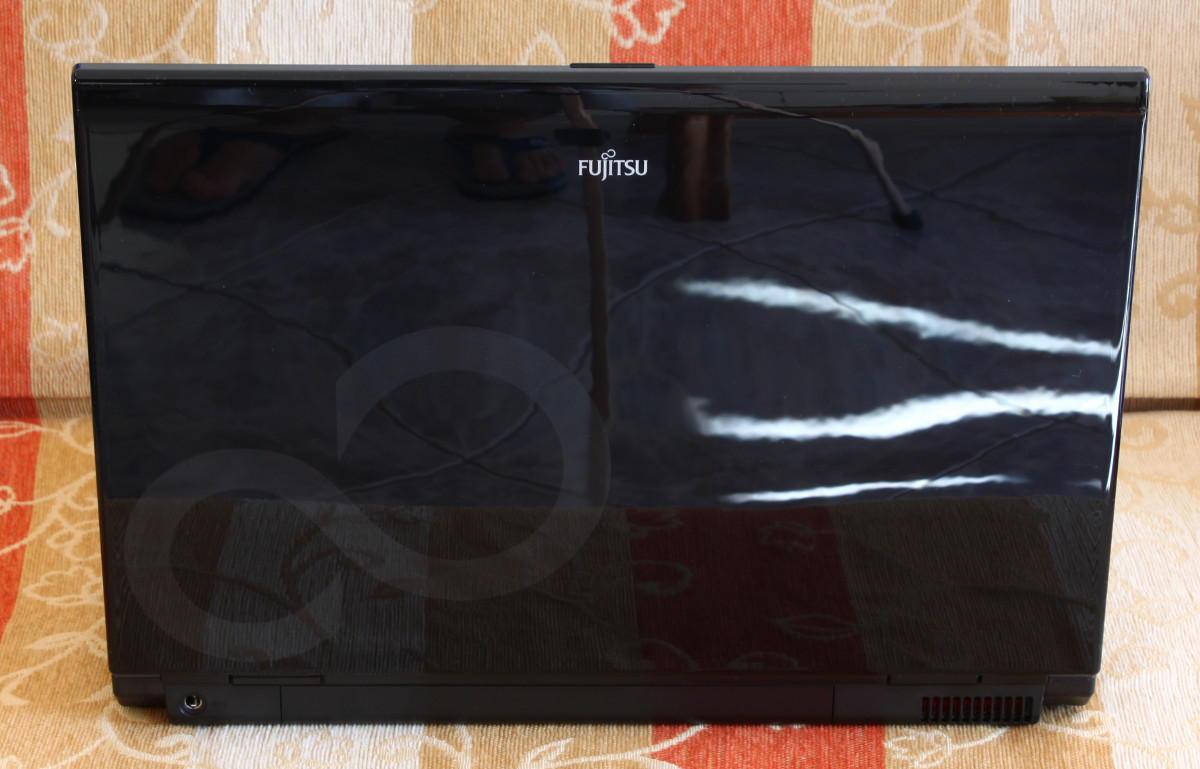
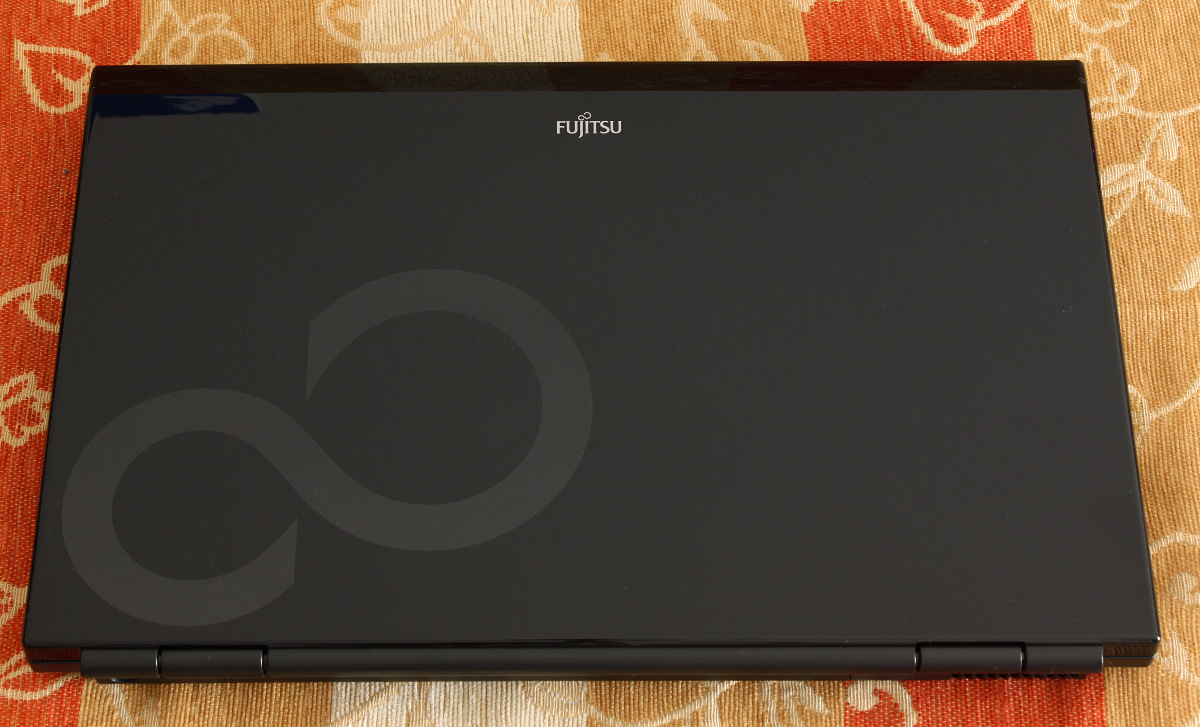
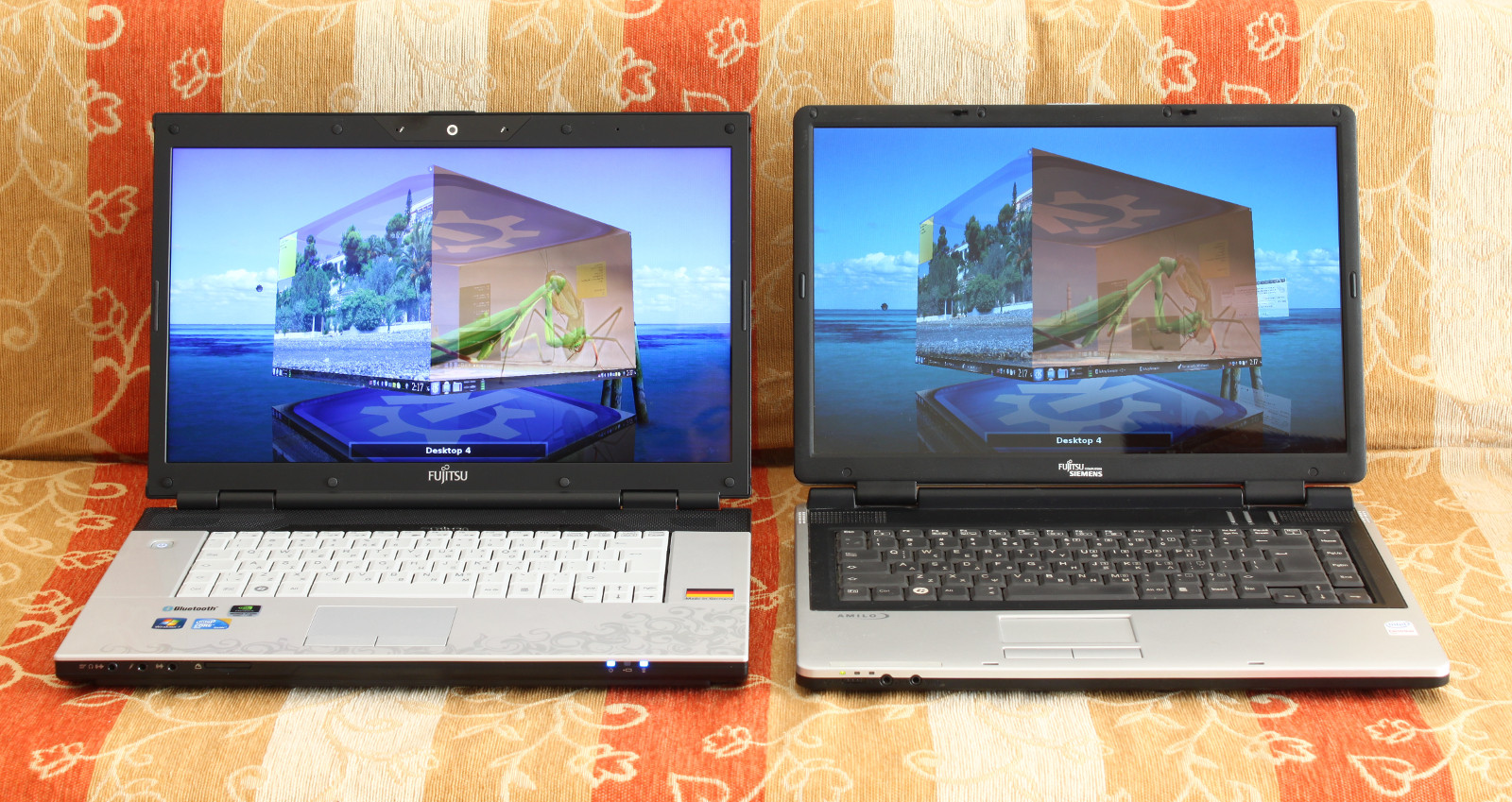
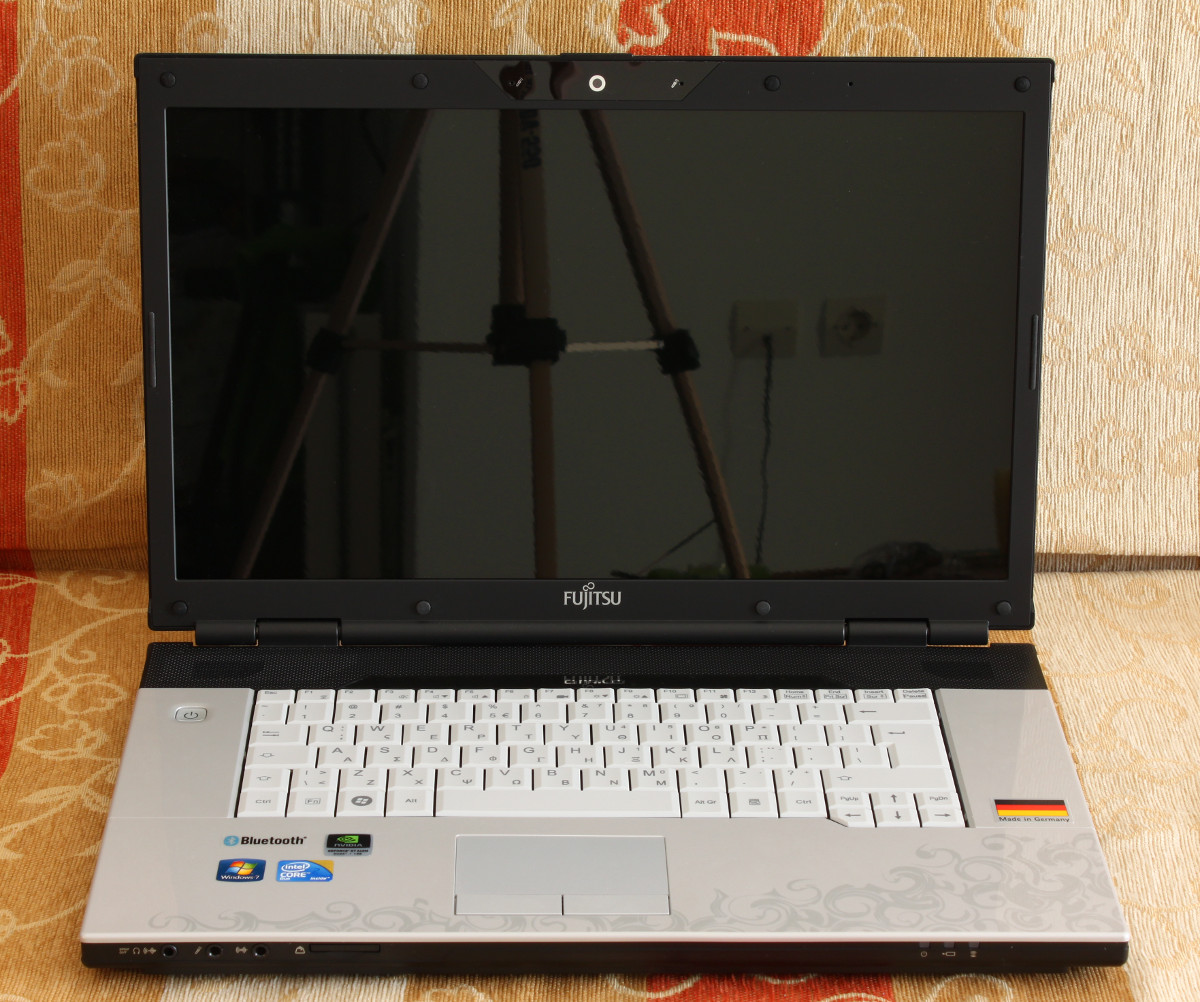
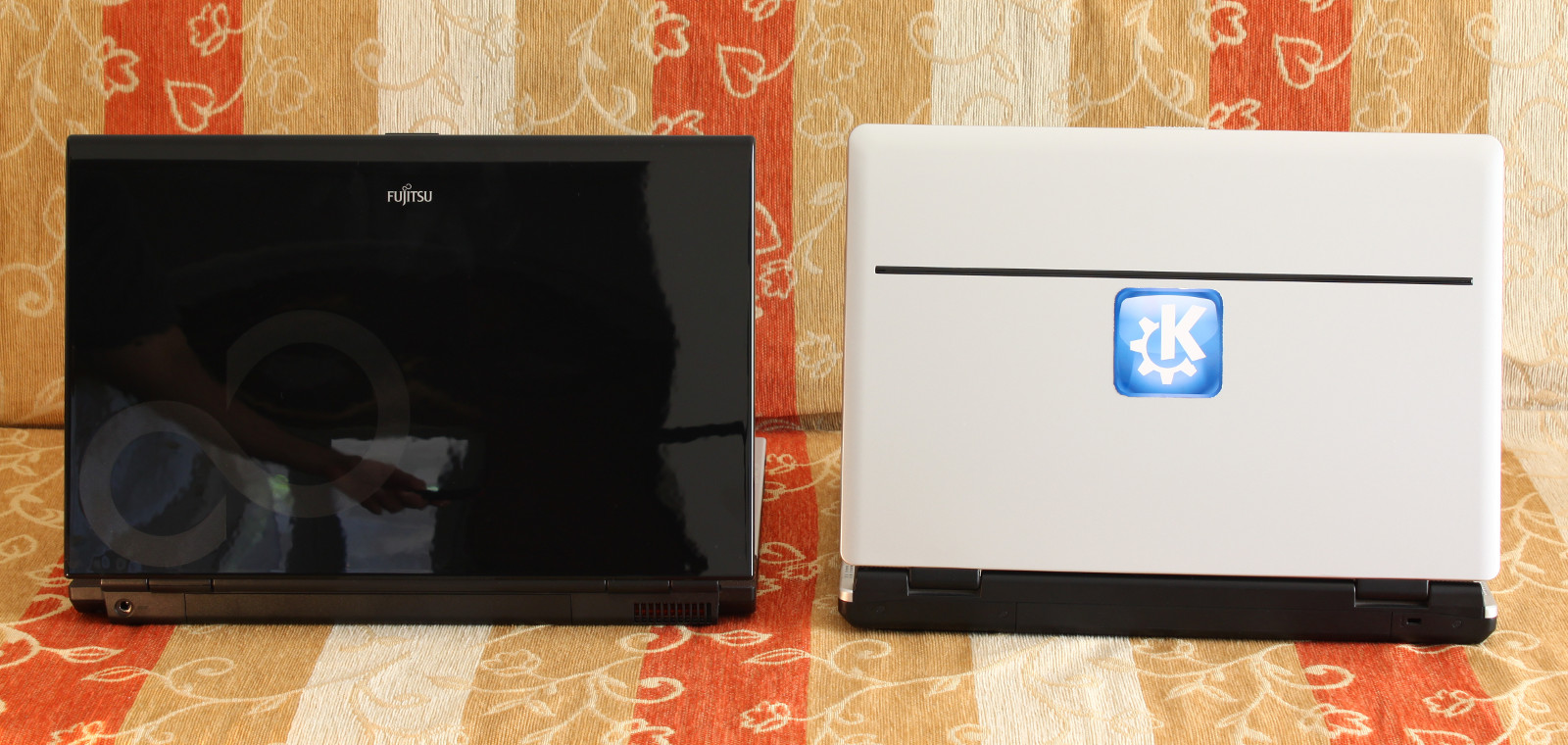
The 3560 looks good, compared at least to my old 2515. It has a nice glossy black finish (prone to dust and fingerprints unavoidably) and a white-grey keyboard with a large silver area around it. The monitor lid uses magnets to stay closed instead of latches. The build quality doesn’t seem any different but maybe, because of the better looking materials, it feels more fragile. It is worth mentioning that this isn’t a Fujitsu Siemens computer but a plain Fujitsu computer. Fujitsu has bought Siemens’ share of their joint venture and dropped their name.
One thing that annoys me is the stickers that come with a new laptop and this one has its fair share: bluetooth sticker (why?), nvidia sticker, intel sticker, windows 7 sticker (first to go) and finally the German flag with a proud “made in German” underneath it. I haven’t find the time yet to remove them.
Let’s move on the things that matter: the Linux user experience!
It’s processor is quite fast and cool. It isn’t a desktop quad core monster but it can handle most tasks efficiently. It’s temperature usually is in the 45°C – 56°C range even with the two cores compiling at full speed, pretty cool for a laptop. A nice side-effect is that it’s fan isn’t used much and when used it is quite silent. Specs claim maximum noise levels at 35dB(A). The cores seem to change their frequency independently. I didn’t use it on my lap but touching it’s bottom seems cool after some hours of normal work (browsing, listening to music, KDE 3d effects turned on).
The video card is a joy to work with. Everything is fast and snappy. The nvidia-settings utility allows you to setup on-the-fly external monitors you just plugged in, perfect for presentations without awkward moments. Vdpau is supported and HD video content playback is virtually cpu-less. I installed Unreal Tournament 2004 demo, set every possible setting to high and the resolution at 1680×1050 (my external monitor) and the game run smoothly. It had some difficult moments when many enemies and their bullets were in view but nothing sort of impressive for a laptop at this price range. Some Cuda demonstration programs I installed also looked quite interesting. Oh, yes, from a more practical point of view KDE 4 effects run smoothly too. I use X.org X server 1.7.1, nVidia proprietary drivers 190.42 (-r3 for Gentoo users) and Mesa 7.5.2.
Of course there are some quirks. One thing is that I had some X server restarts (a better word for crash) after extensive playing (switching between monitors, continuously turning on/off composite, loading many cuda apps) but nothing I will come upon in everyday use I believe. I work with an external monitor and there weren’t any unpleasant surprises, it works well although since I am too lazy to configure xorg.conf I have to configure my monitors every time I start the computer. This round goes to Intel since their drivers work together with the X (xrandr) and remember your settings, yet they do not work that good with both monitors (internal and external) turned on concurrently. I couldn’t try the HDMI output due to lack of a television set. lspci reveals a nVidia audio interface which I assume is for sound over HDMI.
_Update: _X server crashes are due to X.org server 1.7.1 and nVidia driver 190.42. One can use the older versions of these until new ones come out. Audio over HDMI probably doesn’t work as my ALSA setup fails to recognize it as a sound card.
Sound (tested with ALSA 1.0.20 and 1.0.21) works out of the box except the internal mic. I had a really hard time making it work though. I just copied my old Gentoo installation instead of doing a clean install and a very old configuration file from alsaconf find it’s way to the ALSA service preventing the audio card to work correctly.
The laptop without anything plugged in uses its internal speakers. When you plug your headphones or your speakers the internal speakers automatically mute and the external ones are used. The mic in jack also works and the line in should work (but I didn’t test that one). The S/PDIF I couldn’t test it but I noticed that every time I insert my headphones a red glow comes out of the jack for an instance. Probably it tries to autosense S/PDIF connections. The internal mic I didn’t manage to make it work.
The audio chipset is the Realtek ALC272. By setting model=3stach-6ch-dig in ALSA I managed to turn line in and mic to line outs (not headphone out, the signal isn’t ampified)! I lost the normal line out that way but this configuration can be used to drive 4 analog speakers. If you play a little more with ALSA you may even get the internal mic to work, who knows.
_Update: _The internal mic works too! It’s a funny thing but you can’t set the internal mic to play at the speakers what it captures so I thought it didn’t work. Today I was playing with pulseaudio so I noticed that it’s input monitor meters were dancing. I opened audacity and recorded a few seconds and at playback I indeed heard my voice! So internal mic will work for audio conferences. One problem, at least for my machine, is that the left internal mic (yeap, it’s stereo) captures at significant lower volume level than the right, thus the output sounds like it comes only from the right speaker.
The display looks good, it is very bright and the colors seem impressive (but a little blue-ish). I haven’t checked though how accurate they are but they definitely seem like an upgrade to me. Unfortunately adjusting the screen’s brightness isn’t supported yet (I’m running on a 2.6.31 kernel) and this can be a big problem since it may be too bright to work with in a room with artificial light. At least the monitor does go to standby after some minutes, although it didn’t respect my settings in the KDE system settings (I had monitor power management turned off). The lid switch works partially. The computer doesn’t do anything if you close the lid, but if you put the machine to standby and close the lid, when you open it the laptop will wake up.
Update: The lid started working perfectly! When you close it the computer goes to standby, when you open it it comes out of standby. I do not remember setting anything to fix this.**
Update 2:** A small workaround -but still very far from a proper solution- is to set the brightness of the monitor during the machine’s boot (at the BIOS screen). There the brightness’ keys work and you can set the desired brightness but you will not be able to alter it later so you better make a good choice or you will have to reboot to set it again!
The gigabit LAN worked out of the box. My router has only 100mbps ports so I don’t know how 1000mbps feel.
The wireless LAN has a bit more of a story. It didn’t work out of the box. My first google searches returned some ndiswrapper related results and I got a bit afraid, I run at 64bit. Fortunately after some more search I found out that open source drivers from Realtek are on the way. They are for Realtek 8192 Se but work on 8172 too. This thread was the most useful as I couldn’t find the driver sources anywhere else. Just download the appropriate version, compile against your kernel and install but… beware!
Usually I prefer the wired LAN but since I wanted to try the new machine I played a bit with the wireless and after I got bored I forgot the wlan service running. After half or one hour the machine froze completely. I turned it off by pressing the power button for some seconds. I turned it on and everything seemed fine but alas, after half or one hour once again the machine froze. Checking the kernel messages I found the wireless to be the culprit. I got these messages: DMA: Out of SW-IOMMU space for 9100 bytes at device 0000:06:00.0. The device mentioned is of course the wireless card and before these messages there were tons of messages about the wireless LAN trying to connect to my network (as instructed by wpa_supplicant). I believe in normal use there shouldn’t be any problem if you use networkmanager or wicd, at least for me there isn’t, the problem happens only with Gentoo’s wlan service.
Unfortunately I don’t have any hardware to test the 802.11 pre-n. A small problem I should mention is the lack of a switch to turn off the wi-fi (in order to save battery for example) but more about this in the Fn κeys section below.
_Update: _The wireless card driver I suggested had some problems often leading to a kernel panic. Thankfully David Woo solved this problems and you can find the latest driver at Ubuntu’s Launchpad at this bug. Just download the latest driver from the attachments section (currently rtl8192se_linux_2.6.0010.1211.2009.tar.gz). Please note that there isn’t anymore any distinction between 32bit and 64bit drivers, so just download the latest.
Bluetooth works well out of the box. I sent files to my phone and used my phone to control my computer through anyremote without tampering with even a single setting!
The webcam works. At first I thought it didn’t but you have to press Fn+F7 in order for it to turn on. It is identified as a usb device, specifically as SuYin USB 2.0 Camera. It works only with kopete. I tried it with tvtime, xdtv, camorama, hasciitime, came, cheese (this one didn’t even install properly) but none accepted it as a valid v4l device except kopete. A small comment about style: I personally think that a silver circle (the webcam) and two small silver mics (the internal mics) over your screen show a really bad taste. Just leave them black, I know my computer has them!
The keyboard is a typical Fujitsu-Siemens keyboard with 85 keys. I find their laptop keyboards to have just the right size. This one may seem a bit small compared to others but this isn’t the actual case. They just removed the last tab of keys (page up, down, home, delete) and arranged these keys in different positions underneath or beneath of the rest keys. A big -for me- problem is the removal of the Sys Rq key. This key is used to gracefully reboot your machine in case of a hard lock (ie by Intel’s graphics driver getting killed by the OOM killer). I usually work on an external keyboard but it is nice to have on the actual laptop. Fujitsu claims the keyboard to be spillproof but I am not brave enough to test it.
The touchpad is actually recognized as a synaptics touchpad, thus enabling you to access all the advanced settings the synaptics driver offers you, like scrolling when you run your finger across the edges or automatic turn off while you are typing. An annoyance is that I need both kcm_touchpad (KDE system settings module) and synaptiks (a KDE touchpad management tool) to set it up to my liking. The problem is that it doesn’t consider the double tap as a left click so I need kcm_touchpad to set the single tap as a left click and I need synaptiks in order for the touchpad to turn off automatically while I type. kcm_touchpad offers the automatic turn off feature but it is grayed out for some reason.
The Fn keys ’ behavior varies. The one that turns on/off the camera works. The one which cycles through available display configurations works too but I strongly suggest to use nvidia-settings for these. Also the key that disables the touchpad and the key that mutes the sound work. The last key working is the one that enables silent operation. When you enable silent operation the CPU stays at 1200MHz and the GPU tops at performance level 1.
The keys for adjusting screen brightness and audio volume do not work. The keys for adjusting the monitor’s brightness are recognized, dmesg logs: ACPI: Failed to switch the brightness everytime you press them, albeit as said they do not work. Also the key for turning off the wireless and the bluetooth doesn’t work (yes it doesn’t have a hard switch, only a soft key) so it ends up eating battery when you don’t need it. The last Fn key is for putting the machine to standby and it doesn’t work.
LED. Normally they wouldn’t go in a review but here they should. The laptop has these led: power (2 of them), battery, wifi + bluetooth (it’s the same led), webcam (2 colors, blue on, red capturing), wired LAN (one led for link, one for tx/rx).
Now, did you notice something missing? Yes, it doesn’t have a caps lock led, neither a num lock led, neither a disk activity led. The last one is probably the most important computer led of all times, why someone would remove it?
The card reader works, at least for SD cards. It is quick and not resource hungry. A small catch is that you have to press a card in order to be ejected. That’s logical for smaller cards but the SD cards you can just pull them out. If you do that the next time you will insert a card it will eject it first because you obviously let the mechanism loaded.
I didn’t test the express card and theDVD burner , the first because of lack of proper hardware, the latter because I am not too interested in it. It propably works. I loaded a kung fu video dvd and played ok. K3b recognizes it as TSSTcorp CDDVDDW TS-L633C with 2MB buffer, burnfree support and able to read and write most CD and DVD formats, including writing support for dual layer DVD-R and dual layer DVD+R.
Standby and hibernate. Let’s start from the easy one: hibernation. I don’t know if it works. I haven’t set it up. Standby which I always use works. The first day it didn’t work but I think it was because I left connected (I can’t remember if I actually did) my USB TV Tuner (Kworld 323U) which always prevents computers from resuming from standby. Just to be sure today I threw to it everything I have, yet it always resumed from standby so I am pretty sure this is the default behavior.
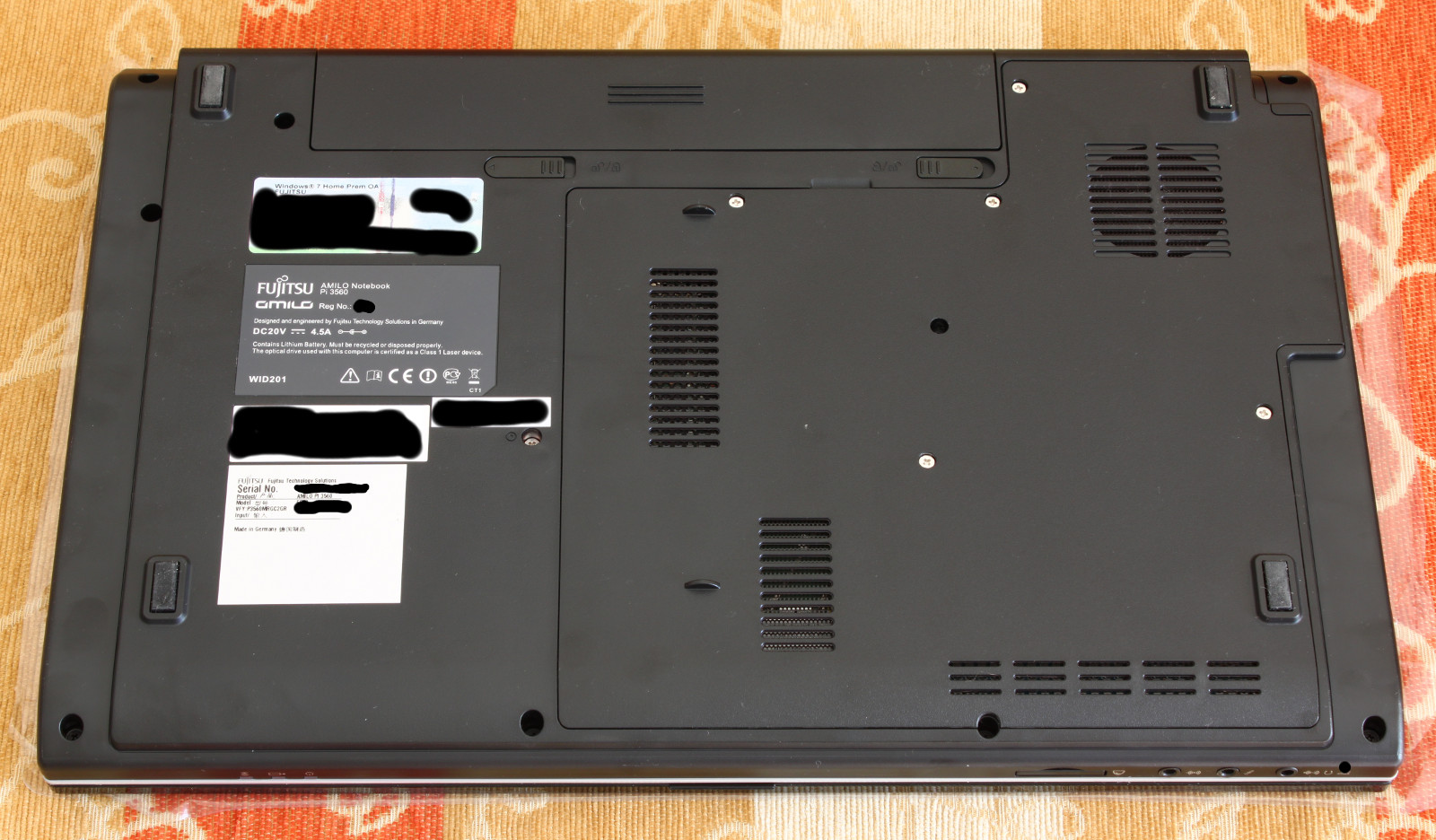
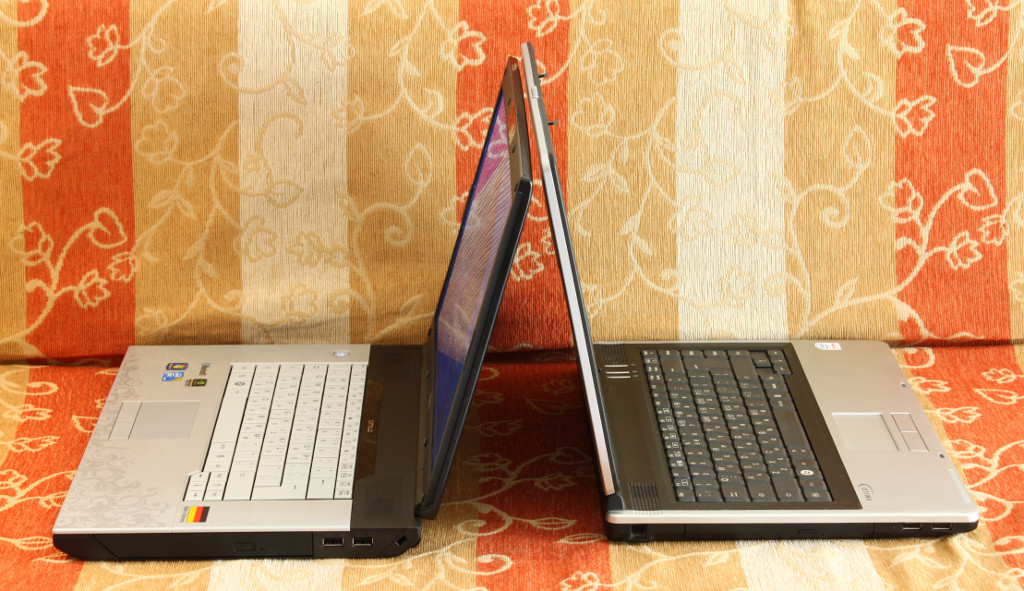
Battery, size, weight. The size is a little bigger than usual 15.4 laptops since this is a 16 inch laptop but the difference isn’t significant. Its width is about 2cm more than my 15.4 and its length about 0.5cm less. It looks a bit of a fatty (speaking for height) but it isn’t, it has the same height as my 15.4 but it has it everywhere, there aren’t any slim areas. The weight is kept at the same levels as the 15.4 category (2.7Kg) which is manageable if you don’t have to carry it around on foot all day. I didn’t have a chance to test the battery but the specs say it lasts three hour if the machine stays idle so a good guess would be about an hour or an hour and a half for normal use since we can not turn the brightness down or turn off the wireless. An interesting thing is that Fujitsu specs claim a 2400mAh battery but the battery’s sticker says 5400mAh.
The laptop comes with Windows 7 Home Premium 64 bit Multilingual (although you get to select the language upon first run and that’s it). On the first boot I let Windows to run in order for them to complete any settings needed. Since I want to have only one computer (this) it is a good idea to have a Windows installation lying around just in case. The installation dialog asked me to partition the disk: perfect! I gave 50GB to Windows and told them to use the remaining 450GB for data. When they completed their installation I rebooted and moved to install Linux. I found out that the laptop has a 2GB recovery partition. I let this partition and Windows partition intact and deleted the data partition. I copied my Gentoo installation from the old laptop to the new one, changed some fstab entries and set the xorg driver from intel to nvidia (yeap, just six characters changed), set up grub and that was it, everything went smoothly. I booted once today into Windows to check if they still work and indeed they seem to work (figure of speech).
Conclusion
I find Fujitsu Amilo Pi 3560 a good deal for it’s money. It is pretty (or not that ugly if you prefer) with decent CPU and RAM and more than decent graphics. The bottleneck for this system is the hard disk.
It’s Linux support is average out of the box. If the monitor brightness adjustment was supported I would say it’s Linux support is very good since this is a problem that may prevent you to use it. Please kernel hackers do your best!
_Updated: _VGA works well (with proprietary drivers), sound, bluetooth, webcam, wired LAN, card reader, stand by work out of the box. Wireless LAN needs some work (install kernel headers, gcc and compile 3rd party open source drivers, it’s easier than it sounds) but even then it can’t be turned off to save battery. HDMI, line in, DVD burning, hibernate, S/PDIF and express card weren’t tested but I am pretty sure that the first four work, for the latter I do not have any experience. HDMI audio doesn’t work yet.
Of course we should not forget that this is a fairly new model (one month old) so it is expected to have some quirks.
I hope my -lengthy, I know- review will help some people with their decisions. I will try to post updates if anything changes.
_Another small update: _ I’ve been using happilly this laptop for about 4 years now. Unfortunately as I spend more and more time in the browser and web pages tend to get heavier, the 3560′s available RAM became a serious problem. Last year I gave in and bought 8GB of SO-DIMM DDR2 RAM from Corsair and since then the machine became a worthy desktop replacement (for my needs) again. Unfortunately SO-DIMM DDR2 is expensive but it is better than buying a new laptop I guess. 